
Put Any Face Into Any Photo — Instantly
Upload a source face and a target photo, and the AI precisely maps the face onto the new image — matching skin tone, lighting angle, and facial contours so the result looks like it was always there. No account required, no watermarks, no manual masking.
Try it now — it's free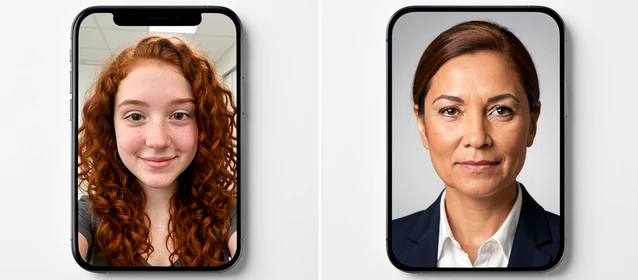
Swap Faces Between Photos with AI
Upload your source face image and the target photo. The AI detects, aligns, and blends the face automatically — preview the result and download when ready.
Drop a face photo here
or click to choose
Drop a target photo here
or click to choose
How to Swap a Face in a Photo
Three uploads and the AI does the rest. Here is exactly what happens at each step.
Upload the Source Face
Select or drag in the image that contains the face you want to use. A clear, front-facing photo gives the sharpest result; the AI can also work with slight angles. You will see a thumbnail confirm the upload.
Upload the Target Photo
Add the photo where you want the face placed — a portrait, group shot, or any image with a visible face. The AI automatically detects every face present in the target so you can choose which one to replace.
Select the Target Face
If the target photo contains multiple people, tap the face you want to swap out. For a single-person photo the selection is made automatically and you move straight to processing.
Generate and Download
Hit the swap button. The AI aligns facial landmarks, blends skin tone, and adjusts lighting to match the target scene. When the preview appears, inspect the result and download the finished image in full resolution.
What You Can Create
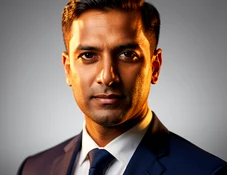
Professional Headshot Swap
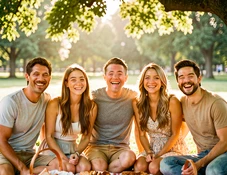
Group Photo Face Swap
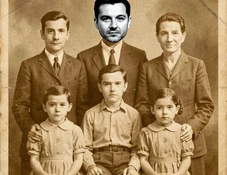
Historical Photo Placement

Movie Poster Character Swap
Face Swap Modes for Every Photo Type
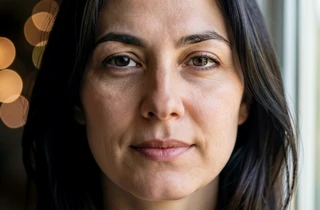
Single Portrait Swap
Best for headshots, profile pictures, and solo photos. The AI focuses entirely on one face, producing the tightest alignment and the most natural skin-tone blend when there is no crowd to navigate.
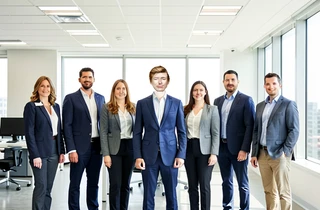
Group Photo Swap
Designed for team photos, family portraits, and event shots with multiple people. The AI detects every face independently so you can target one person without disturbing anyone else in the frame.
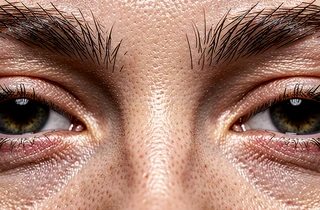
HD Quality Output
When the source and target images are high resolution, the AI preserves fine detail — pores, eyelashes, and hair strands — so the swapped face holds up at full zoom and in print.
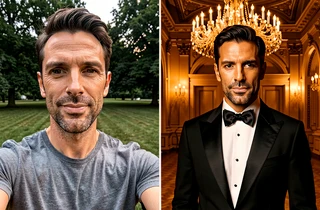
Cross-Photo Face Transfer
Move a face from one photo into a completely different scene — different background, different lighting, different clothing. The AI recalculates lighting direction and color temperature to match the destination image.
Common Questions About Face Swap Photos
Do I need to create an account to swap faces in a photo?
No account or sign-up is required. Upload your images, run the swap, and download the result directly — the tool works without registration.
What image formats does the face swap tool accept?
JPG and PNG are the primary supported formats for both source and target uploads. Make sure the face in each image is clearly visible and reasonably well-lit for the best output.
How realistic will the face swap look?
The AI matches facial landmarks, adjusts skin tone to the target image's color profile, and blends the edge of the face to reduce visible seams. Results are most convincing when both photos are similar in resolution and lighting direction.
Can I swap a face in a group photo without affecting other people?
Yes. When the target photo contains multiple faces, you select which face to replace. Everyone else in the photo stays untouched.
How do I get the best quality result from a face swap?
Use a source face image that is front-facing, well-lit, and at least medium resolution. Avoid heavy shadows or extreme angles on either photo. The closer the lighting conditions between source and target, the more seamless the final image.
Can I swap a face from one photo into a completely different scene?
Yes. The AI transfers the face from any source photo into any target image regardless of background, clothing, or setting. It recalculates color temperature and lighting to fit the destination scene.
Is there a watermark on the downloaded image?
The tool is designed to produce clean output. Check the preview before downloading to confirm the result meets your expectations.
What is the difference between a face swap and a head swap?
A face swap replaces only the facial region — eyes, nose, mouth, and surrounding skin — while keeping the original hair and head shape. A head swap replaces the entire head including hair. This tool performs face-region swaps by default.