Swap Multiple Faces in One Group Photo: Free AI Tools, Five Modes
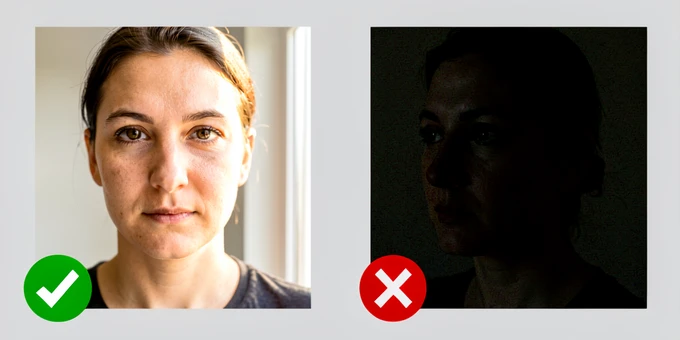
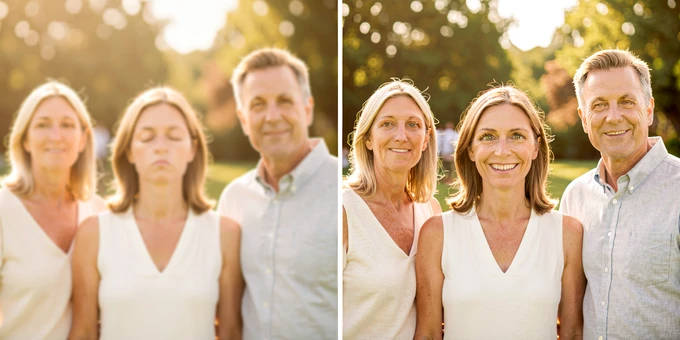
Swapping multiple faces in a single group photo takes under two minutes with the right free online tool. For groups of five or fewer people, Live3D requires no login, applies no watermark, and deletes your photos immediately after processing. Larger groups work better through Remaker AI, which handles more faces sequentially and removes all uploads within 48 hours. Both tools use AI to detect every face automatically, then blend each replacement reference image to match the surrounding skin tone and lighting. Your reference photos are the biggest variable: forward-facing, well-lit images taken in similar lighting to the group shot blend almost invisibly, while angled or dim references produce visible ghosting.
What You Need Before You Start
Before uploading anything, gather three things: the group photo, one reference face image per person you want to swap in, and a clear count of how many faces are changing. That last part matters more than it sounds: the face count determines which tool you should open.
- A well-lit group photo where every target face is visible, forward-facing, and not covered by hands, hair, or other objects
- One reference photo for each person whose face you are adding: front-facing, well-lit, taken in lighting similar to the group shot
- The highest-resolution versions of both photos you can find — AI face detection and blending accuracy both drop on compressed or small images
- A count of the faces you need to swap before choosing a tool — Live3D works reliably with up to five faces, and detection quality degrades beyond that limit
No software installation is needed. Every tool in this guide runs in a browser.
Choosing the Right Tool for Your Group Size
Each tool has different limits, login requirements, and credit models. Using the wrong one for your group size means wasted credits or partial results where the AI silently skips faces beyond its detection ceiling.
| Tool | Face limit | Login required | Watermark | Data retention |
|---|---|---|---|---|
| Live3D | Up to 5 (quality degrades beyond) | No | No | Deleted immediately after processing |
| Remaker AI | Larger groups supported | No | Not published | Deleted within 48 hours |
| Faceswapper.ai | Not published | No | Not published | Not published |
| Media.io | Not published | Yes (free on signup) | Not published | Not published |
| Dzine AI | Not published | Not published | Not published | Not published |
| Picsi.Ai | Not published | Subscription for advanced features | Not published | Not published |
For a quick swap of up to five faces without creating an account, Live3D is the default choice. For larger groups, Remaker AI handles more faces and keeps no permanent records. Faceswapper.ai gives you six free daily credits that refresh every 24 hours; after swapping, the built-in AI photo editor lets you fine-tune skin tone or brightness directly in the tool before downloading.
Dzine AI differs from the others: it requires a text prompt describing the swap action before processing. That extra step is slower but gives more control over output style. Picsi.Ai locks advanced features behind a subscription, so it belongs further down the list for users who want a fully free workflow.
The Five Multi-Face Swap Modes
Not every group photo needs every face replaced. Media.io is the only tool that explicitly names all five swap modes as separate presets. Knowing which mode fits your goal saves time and prevents uploading the wrong number of reference photos.
- Selective swap: Replace only specific faces in the group, leaving the rest unchanged. Use this when one or two people blinked or had a bad expression.
- All-different swap: Each face in the group gets its own distinct replacement reference. This requires one reference photo per person being replaced.
- All-same swap: Every face in the group is replaced with a single reference face. Media.io's dedicated all-same preset produces more consistent blending than repeating single-face swaps manually.
- Single person in group: Swap only one person's face within a larger photo. The AI isolates the target face and leaves all others untouched.
- Mutual swap: Two people in the photo trade faces with each other. No external reference image is needed.
Most free tools default to all-different mode without labeling it. If you need all-same or mutual, Media.io surfaces these as distinct options in its interface.
Step-by-Step: Swap Multiple Faces with Live3D
Live3D is the fastest path for groups of five or fewer faces. No account required, no watermark, and photos are deleted as soon as the session ends.
- Open Live3D multiple face swap in your browser. No account or sign-up is required.
- Upload your group photo. The AI scans the image and places detection markers on every face it locates. Faces should be forward-facing and unobstructed for reliable detection.
- Click on the detected face markers to choose which faces you want to replace. Faces you leave unselected stay unchanged.
- Upload one reference face image for each face you selected. Use a clear, forward-facing photo with lighting similar to your group shot.
- Click Generate. Live3D processes the swap in seconds and shows the result.
- Download immediately. Photos are not permanently stored and are removed when the session ends.
The five-face limit is a practical ceiling, not a suggestion. Upload a photo with eight people and the AI may locate only five, leaving three faces unprocessed. No error message flags the shortfall: you simply receive a partially swapped image. For groups beyond five, use Remaker AI or crop the photo into sub-groups of three to four faces, process each separately, and recombine the outputs.
Step-by-Step: Swap Multiple Faces with Remaker AI
Remaker AI suits larger groups and provides a free alternative when Live3D's five-face limit is too low. The workflow is sequential: you process one reference face at a time and re-use the output as the new source for each subsequent swap.
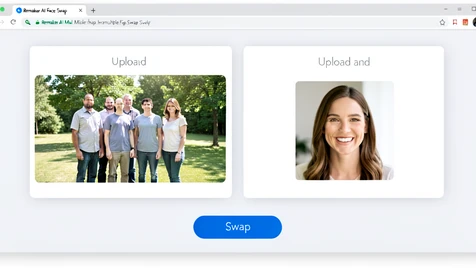
- Open Remaker AI multiple face swap in your browser.
- Upload the source group photo on the left panel. Use the highest-resolution version available.
- Upload the target face photo of the person whose face you want to insert into the group.
- Click Swap. The replacement processes in seconds. Preview the result before downloading.
- Download immediately. All uploaded and generated photos are deleted within 48 hours.
- For each additional face, re-upload the downloaded output as the new source photo and repeat from step 3.
The sequential approach requires more passes than Live3D's multi-select system. But it avoids face-count ceilings. The 48-hour deletion window is short. Download before you close the tab.
Troubleshooting: Why the AI Fails and How to Fix It
Most failures fall into two categories: the detection engine never found the face, or it found the face but the blending went wrong. These have different causes and different fixes.
The AI missed a face in the group. Face detection models identify faces by locating landmarks: eye corners, nose tip, jaw edge. When faces are too small relative to the image dimensions, the model cannot resolve enough pixels around those anchor points to fire a detection. Upload a photo of 20 people and the small background faces simply fall below the resolution threshold. Fix: switch to a tool with a higher face-count limit, or crop the photo to enlarge the relevant faces before uploading.
A swapped face looks ghostly or misaligned. The alignment step warps the reference face to fit the target position by mapping facial landmarks from one image onto the other. If your reference photo shows the person at a 45-degree angle, the mapping applies a forward-facing warp to an angled face. The result sits off-center or bleeds onto the adjacent hair and jawline. Fix: use a reference photo where the person is looking directly at the camera.
- Skin tone or color mismatch: Reference photo taken under different lighting (warm indoor vs. cool outdoor) causes blending inconsistency at face boundaries. Use a reference taken in similar light direction and color temperature to the group photo.
- Face partially covered: Hands, hair, or objects interrupting the face boundary prevent the landmark detection layer from closing the face outline. The swap either fails silently or distorts the edges. Use a cleaner photo of the same person.
- Faces very small in a large group photo: At small face sizes the AI cannot distinguish individual landmarks reliably. Crop to the target faces and upload the cropped version, or use a higher-resolution source image.
- Watermark on the result: Verify you are using the correct free tier. Live3D explicitly offers watermark-free output. If a watermark appears, confirm you have not accidentally landed on a paid session of a different tool.
- Credits ran out mid-session: Faceswapper.ai refreshes six free credits every 24 hours. Dzine AI daily credits also reset. Wait for the refresh or switch to Live3D or Remaker AI for the current session.
Privacy: Where Your Photos Go After Upload
Knowing the deletion window matters. If you upload a photo and forget to download, the result may be permanently gone before you return.
- Live3D: Photos are processed privately and deleted immediately after processing. The tool states they are never stored.
- Remaker AI: All uploaded and generated photos are deleted within 48 hours. Download before that window closes.
- AI Face Swap (generic category): Image history is saved on the server for approximately 24 hours before automatic deletion.
- Practical rule for every tool: Download the result as soon as you see it. Do not wait until a later session.
None of these tools disclose whether uploaded photos are used to train AI models. A retention timeline and a training-data policy are separate questions. Read each tool's privacy policy directly if that matters for your situation.
Getting a More Realistic Result
Most blending artifacts trace back to input mismatches, not tool limitations. Changing the reference photo fixes more problems than adjusting any setting.
- Match lighting direction in the reference photo to the group photo: if outdoor light hits faces from the left in the group shot, use a reference where the same applies
- Use the highest-resolution version of the group photo available; compress it only after downloading the final result
- Forward-facing reference photos blend better than angled or profile shots, because the AI alignment step requires clear frontal landmarks to map correctly
- If a swap looks wrong after generation, try a different reference photo of the same person before changing any settings
- For groups over five people, crop into overlapping sub-groups of three to four faces, process each, and recombine the outputs
- Review the final output at full resolution before sharing: file compression on download can hide blending seams that are clearly visible at original size