
Swap a face into a photo with a free AI tool — the full online workflow
Open a browser, load any free AI face swap tool, upload the photo whose face you want to replace, upload a clear shot of the new face, and click generate. That is the entire workflow. Most tools finish in seconds to a couple of minutes and hand you a downloadable image. The only thing that really decides how good the result looks is the quality of the two photos you feed it. No software install, no manual masking, no Photoshop layers.
This guide covers the universal upload-generate-download flow, then walks through the specific free tools worth trying, the four reasons your result might look wrong, and what each tool actually does with the photos you hand it.
What you need before you start
Most failures happen before the upload button. Get these right and the rest of the workflow stops being interesting.
- A source face photo: clear, sharp, well-lit, and shot roughly head-on. This is the face you want to drop into another image.
- A target photo: in focus, with the subject also looking somewhere close to the camera. This is the image whose face will be replaced.
- A modern browser. Chrome, Firefox, Safari, or Edge are all fine — there is nothing to download or install for any of the tools below.
- Permission. Only swap faces you have the right to use. WaveSpeed states this directly in its terms, and Invideo blocks unauthorised faces with a face-matching check before generation.
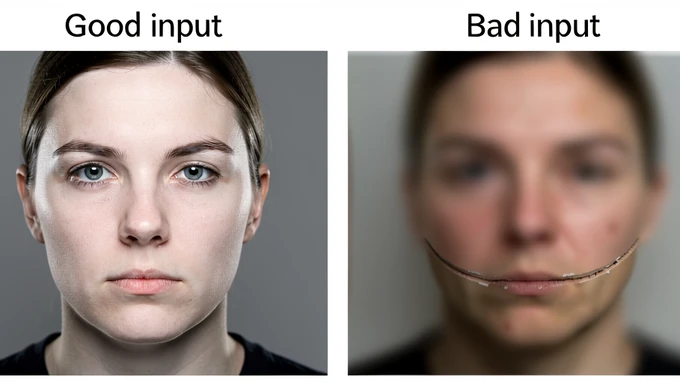
Why so much weight on the input photos? Because face replacement AI has to first locate the face it is swapping. The deep learning face swap model finds a small set of facial landmarks — eye corners, nose tip, jaw points — and uses them to align, warp, and blend the new face. Blurry pixels, weird angles, and shadow noise all degrade landmark detection, and once the alignment step gets bad data, nothing downstream rescues it.
How AI face swap works in three steps
Every browser-based tool below uses the same shape, regardless of branding. Learn the three steps once and you can drive any of them.
- Upload the target photo. This is the image you want to keep — same background, same body, same outfit — but with a different face.
- Upload the source face photo. This is the face you want pasted in. A few tools, like MyShell, also let you skip this step and pick from a built-in library of sample faces instead.
- Click the generate or swap button and wait for the result, then download the file.
Behind that one click, the tool runs face alignment, warps the source face to match the target's pose and proportions, adapts skin tone, and feathers the edges. This is what people mean by seamless face blending: the model is matching colour, lighting direction, and contour at the boundary so the new face does not look pasted on. Processing time runs from about 5 seconds on Pincel and Invideo at the fast end, up to roughly 2 minutes on Higgsfield's free tier when traffic is heavy.
Pro tip. If a generation hangs past two minutes, refresh and try again later. Pincel and Higgsfield both note that peak hours slow things down, so off-peak retries usually finish on the first try.
Which free AI face swap tool should you use?
Tools differ less in raw quality than in the things they do not advertise on the landing page: whether the free tier hides a watermark, demands a sign-up, caps your daily runs, or quietly bans commercial use. Here is the side-by-side.
| Tool | Sign-up? | Watermark | Free-tier limit | Commercial use | Notable |
|---|---|---|---|---|---|
| Magic Hour | No | None | Free face swaps with no daily cap surfaced | Allowed on free tier | Up to 4K output, results often under a minute, 4.9/5 on Product Hunt with 100M+ AI images generated |
| Remaker (FaceVary) | No | None | Free with no sign-up gate | Personal use | Direct browser flow, no friction |
| Higgsfield | Account | None stated | 5 generations per day, 24-hour reset | Paid Pro plans only | 30 seconds on paid plans, up to 2 minutes on free |
| MyShell | Account | None stated | Free, with 50+ sample faces built in | Personal use | Browser-based, 4.7/5 from 1,287 reviews, photos deleted after use |
| Pincel | Account | None stated | Free trial with image limit before upgrade | Personal use | About 5 seconds per swap in most cases |
| Pixlr | Account | None stated | Free in browser | Output is yours to own | PNG export, results in just a few seconds |
| WaveSpeed AI | API key | None | Pay-as-you-go at $0.01 per run | Allowed | JPEG, PNG, and WEBP output formats |
| Invideo | Account | None | Free face swap online | Personal use | Up to 4K resolution, results in about 5 seconds, images not used to train models |
Read it this way. If you want the absolute lowest-friction path — no account, no watermark, output you can use commercially — Magic Hour and Remaker are the two to try first. If you want to see whether a tool's quality is worth the upload, MyShell's sample faces let you generate a result without handing over your own photo at all. If you need raw volume and have a script handy, WaveSpeed at one cent per run is the cheapest sustained option in this list.
And if you need the output for a paid project, verify commercial rights before you start. Higgsfield reserves commercial use for paid Pro plans, while Magic Hour and WaveSpeed allow commercial use on their free and standard tiers respectively. Discovering that limit after you have already produced the asset is the kind of mistake that costs a deadline.
Step-by-step: face swap with Magic Hour
Magic Hour is the friendliest landing spot for a first-time user. No account, no watermark, commercial use cleared, and the automatic alignment is strong enough that the company claims it cuts post-processing cleanup by 70 to 90 percent versus manual editing. Here is the exact flow.
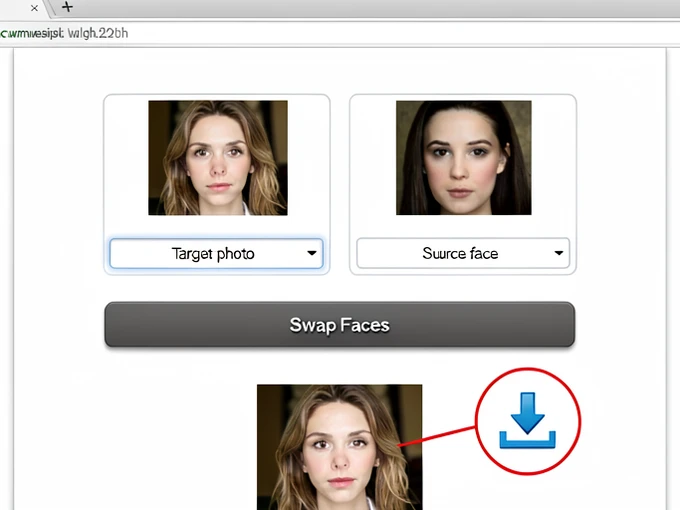
- Open Magic Hour's face swap tool in your browser. There is no sign-up wall — you land directly on the upload screen.
- Upload the target photo. Pick a sharp, well-lit shot with the subject facing the camera. The face in this image is the one being replaced.
- Upload the source face, or pick one from the preset list. Same rules: clear, front-facing, evenly lit.
- Click Swap Faces. The model runs alignment, blending, and skin tone adaptation in one pass. Results are usually ready in under a minute.
- Download the result. Output is watermark-free and commercial-use ready, and most images need no manual touch-up.
Cleanest-result tip. Crop the source face photo tight to the face plus a small border before uploading. A wide frame gives the model more background to second-guess; a tight crop tells it exactly which features matter.
Why your face swap looks wrong — and how to fix it
Almost every ugly result traces back to one of four problems with the input. Each has a fix you can apply in under a minute.
Blurry or low-resolution input
Why it breaks. The model leans on a face alignment algorithm that finds landmark points before it can warp anything. Soft pixels and compression noise smear those landmarks together, so the alignment step picks the wrong anchor positions and the rest of the pipeline blends garbage. WaveSpeed calls this out directly: clarity of facial features is required for the recognition stage to work.
Fix. Use a sharp, high-resolution, well-focused photo with the subject facing the camera. If your only option is a downscaled phone screenshot, retake the picture instead of guessing — every other fix on this list assumes the input is at least clean.
Mismatched lighting
Why it breaks. Lighting consistency is what makes the seam disappear. When the source face is lit from one direction and the target body is lit from another, the blending step can match colour but cannot rebuild shadows. The result is a visible boundary along the jawline or hairline where two lighting setups collide.
Fix. Pick a source face photo whose lighting direction and intensity roughly matches the target. Both should be evenly lit from a similar angle. Even small lighting matches dramatically improve edge blending — a portrait taken in the same room as the target shot will outperform a studio headshot every time.
Extreme face angle
Side profiles, sharp upward tilts, downward selfies. They all hide landmarks the model needs to align the face, so detection accuracy drops and the warp comes out distorted. Pincel notes this explicitly: front-facing portraits produce the best results. Use a photo where the subject looks straight at the camera and you sidestep the problem entirely.
Anime, illustrated, or 3D-rendered targets
Face swap models are trained almost exclusively on photographic data. The visual style gap between a photo and an illustration is enormous, and the model has nothing in its training to bridge it. Expect a noticeably lower-quality result on cartoon or rendered targets, and plan for manual touch-up if you push ahead anyway. For a clean result, keep both source and target as real photographs.
Slow generation is not a fifth failure mode — it is just peak load. If processing crawls past two minutes, refresh and try again during off-peak hours.
Privacy and consent: what happens to your photos
Uploading your face to a web app you have never used before is a reasonable thing to be cautious about. The good news is that several tools publish specific data-retention promises you can hold them to.
- MyShell: runs securely in the browser and does not store or share uploaded images. Photos are processed instantly and deleted after use.
- Invideo: uploaded images are not saved by Invideo and are not used to train any AI model on the platform. Every face also requires verified consent before generation.
- Pincel: no data is stored and no pictures are saved.
- Magic Hour: free face swaps with no watermark and no sign-up — but check the current terms before uploading anything sensitive, since policies on free tools can change.
- Higgsfield: 5 free generations per day with a 24-hour reset, and commercial use rights only on paid Pro plans.
One non-negotiable. Only upload images of people whose consent you have. WaveSpeed makes this an explicit user obligation in its terms, Invideo blocks unverified faces at the model level, and the legal and ethical reasons are the same regardless of which tool you pick. A clean face swap of a stranger is still a face swap of a stranger.
On commercial use, the split is simple. Pixlr says your creative output is entirely yours to own. Magic Hour and WaveSpeed both allow commercial use without an upgrade. Higgsfield gates commercial rights behind its paid Pro plans. If any of those facts matter for your project, confirm them on the tool's own page before you generate the asset — free-tier terms are exactly the kind of thing that shifts between visits.
so does the source face photo actually need to be the same size as the target? upload screen didn't say anything and i don't wanna waste a run
tried magic hour twice last week, both times the jawline came out blurry. not sure what everyone's raving about
Febiven that's usually lighting mismatch, not the tool. if your source face is lit from the side and the target is front lit the blend can't rebuild the shadow, so you get that smeared seam right along the jaw
ohh so both photos need similar lighting? didn't catch that part
ngl i just grabbed a random selfie and a stock photo, probably my own fault then
the tight crop tip matters way more than people think
yeah a wide frame gives the model more background to second guess. i crop to face plus maybe 15 percent border and the alignment comes out a lot more consistent
ok i just tried remaker, no signup and it was done in like 6 seconds?? this is wild
remaker is personal use only though. watch out if you're doing anything for a client
oh i'm just messing around for fun lol
for commercial the article's right, magic hour and wavespeed are the safe two. higgsfield locks commercial behind pro, found that out the annoying way
had a whole mess with higgsfield's free tier once, long story
wait what happened
eh, another time...
fwiw on higgsfield free i timed 7 runs, slowest was 113 seconds around 9pm, off peak it dropped under 30
does the 5 per day reset actually work properly? i hit a limit somewhere and it never came back
it's a 24 hour rolling reset, and it's per account not per IP so a new tab won't get you around it
myshell sample faces are underrated for testing tbh, you can judge the quality before handing over your own face
skimmed the privacy part ngl, do these actually delete the photos after or not
myshell and pincel both say no storage, invideo says not used for training. magic hour just says check current terms, which is the polite way of saying it can change on you
the one who mentioned lighting earlier was right. redid mine with both shots from the same window and the seam basically vanished
good, honestly that's the single biggest fix. bigger than which tool you pick
reading this on lunch, gonna try the crop thing tonight from my desktop
anyone actually gotten a clean swap on a 3/4 angle though? every time i go off straight on the nose warps
wait does the target photo angle matter too or just the source face?